Guides
Desktop App Usage
Use the desktop app's Overview, Analytics, Coach, Scrollback, Tools, Models, Projects, and Config screens plus tray Quick View.
Desktop gallery
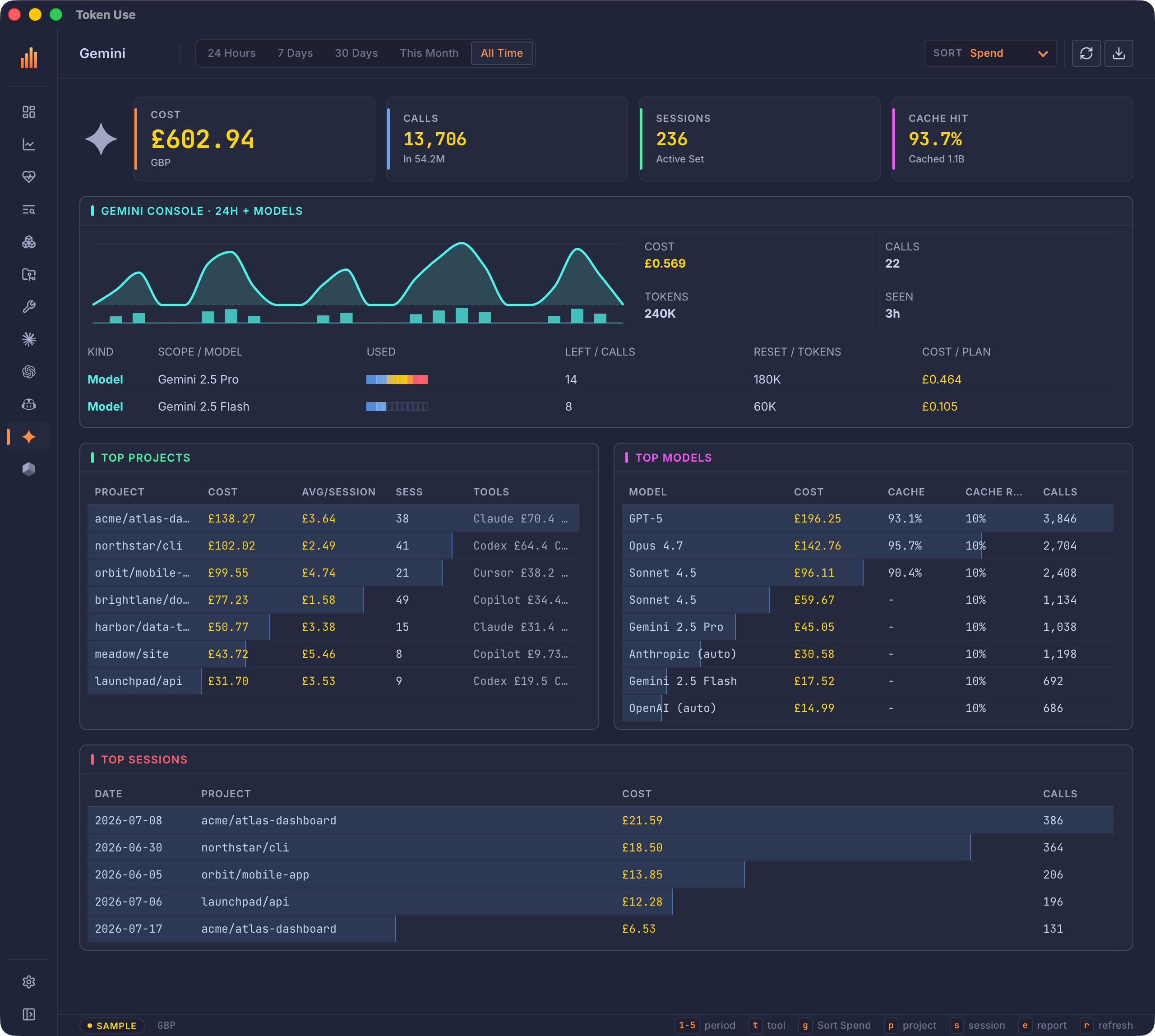
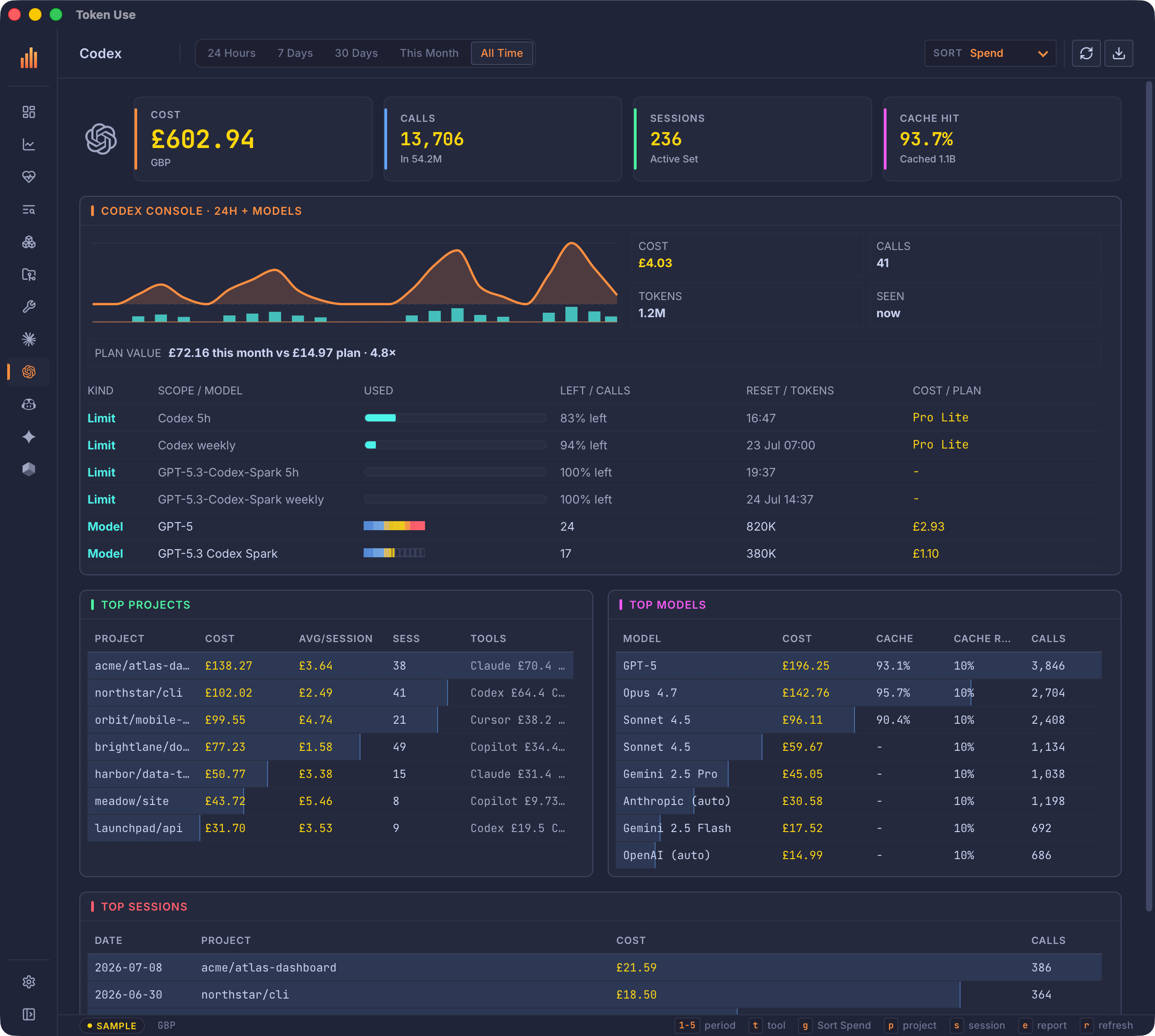
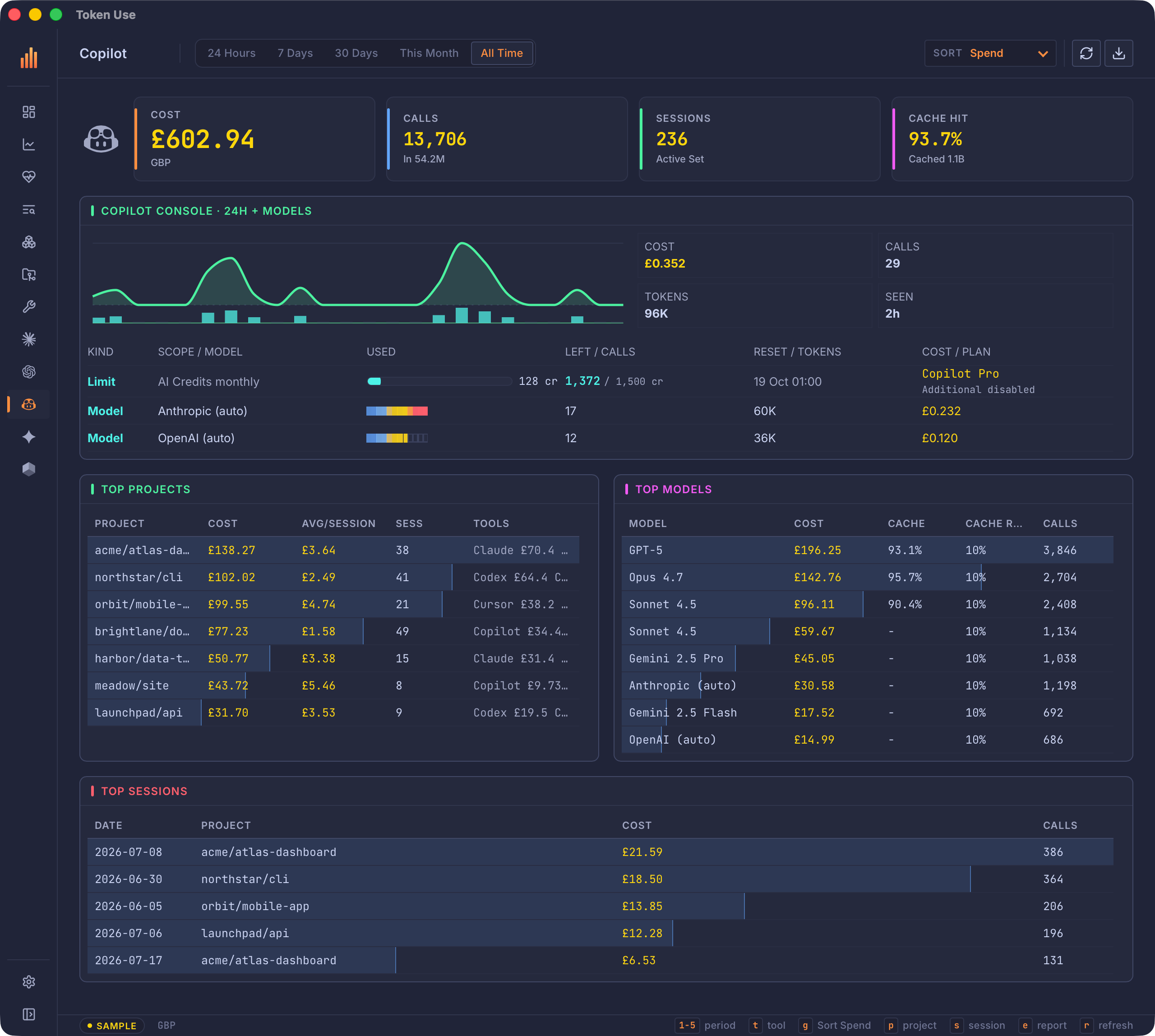
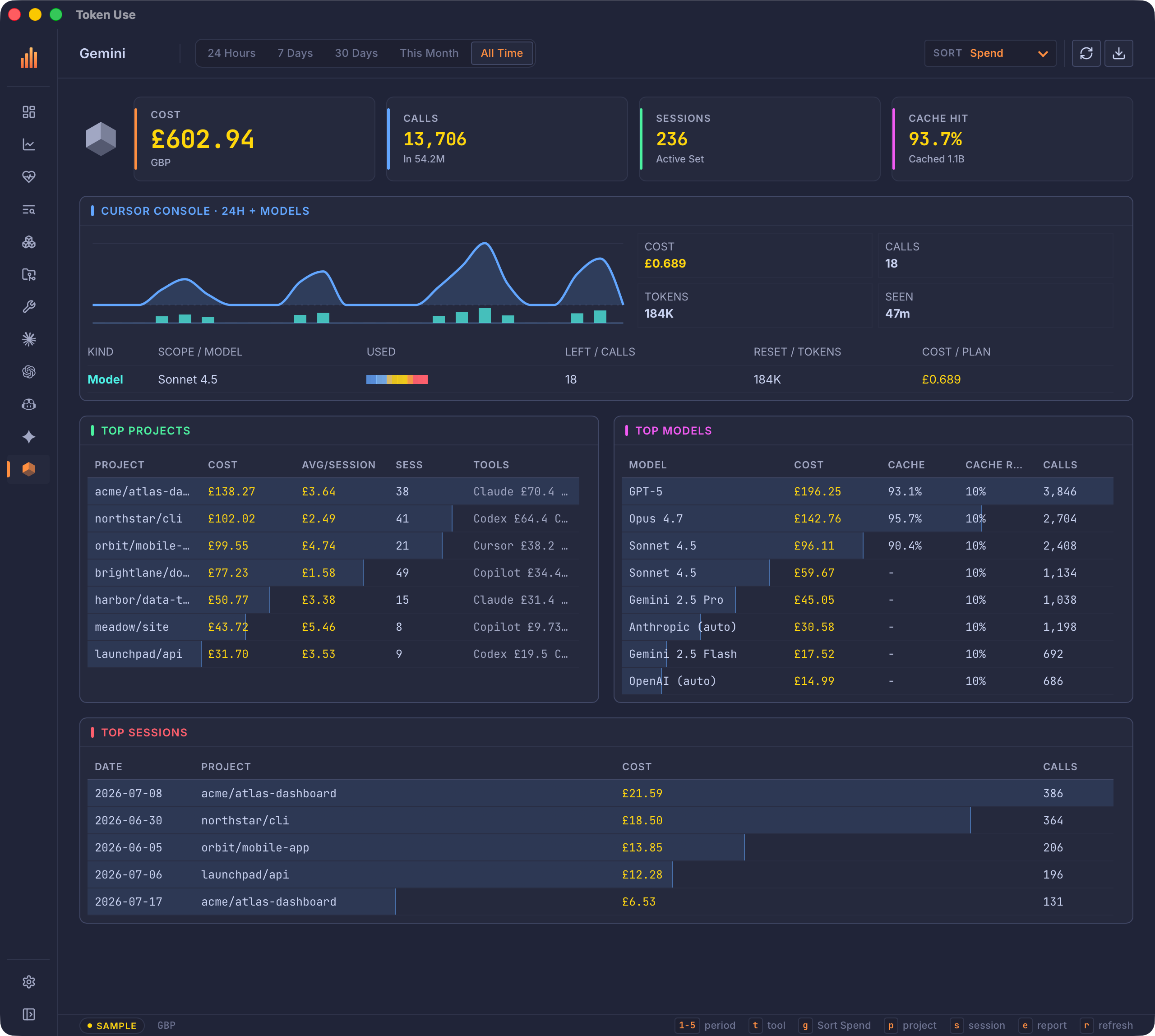
Desktop app screens.
Eight sidebar screens, project and MCP detail, and five tool pages
Desktop App Usage
The desktop app is a Tauri v2 and Svelte frontend over the same local Rust core as the TUI. It shares the archive, configuration, currency and pricing books, sample data, refresh worker, session details, quota snapshots, and report generator. It does not send usage telemetry or require provider API keys.
Install And Open
Install on Apple Silicon macOS with Homebrew Cask:
brew install --cask russmckendrick/tap/tokenuse-desktop
open -a "Token Use"
The macOS app also ships as a signed and notarized Apple Silicon DMG. Linux builds are published as unsigned AppImage, deb, and rpm assets for AMD64 and ARM64. Windows builds are published as unsigned AMD64 NSIS and MSI installers. Verify the matching .sha256 file before running an unsigned asset.
Application Shell
The desktop app uses a persistent left sidebar rather than the TUI tab strip. Every primary screen and every supported tool has a direct entry:
- Overview
- Analytics
- Graph
- Coach
- Scrollback
- Models
- Projects
- Tools
- Claude Code, Cursor, Codex, Copilot, and Gemini
- Config
Use Collapse at the bottom of the sidebar to reduce it to an icon rail. The choice is remembered locally. The active screen remains highlighted in either state.
Tools sits directly above the five direct tool rows as the group’s summary entry. The tool rows dynamically order themselves from highest to lowest rolling 24-hour call activity, so the tools currently driving usage stay closest to their summary. Primary screen and Config positions never move.
The header holds the controls that apply to the current screen in one toolbar: title, period, contextual tool/project/sort filters, refresh, then report. At compact window widths the filter labels collapse to icons while their current values remain visible. Overview and Analytics expose period, tool, sort, and project filters. Graph exposes period, tool, and project; relationship weighting lives inside its explorer. Dedicated tool pages expose period and sort. The Models catalog uses the active period for ranking while keeping all five ranges visible in its table; a model’s dedicated page adds the sort control. Projects exposes period, sort, and project. The parent Tools screen is a fixed rolling 24-hour capacity view, so its period control is intentionally hidden. Scrollback hides the period and sort controls too — its search box and tool/project selects live in the page’s own toolbar.
The footer shows live or sample source, currency, and context-sensitive shortcut hints. Refresh, report, configuration, and sync results appear as temporary bottom-right toasts instead of permanently consuming header space.
Long tables and result lists have bounded heights, sticky column headings, and their own scrollbars. Selecting All Time therefore adds scrollable rows without stretching every panel on the page.
Screens
Overview
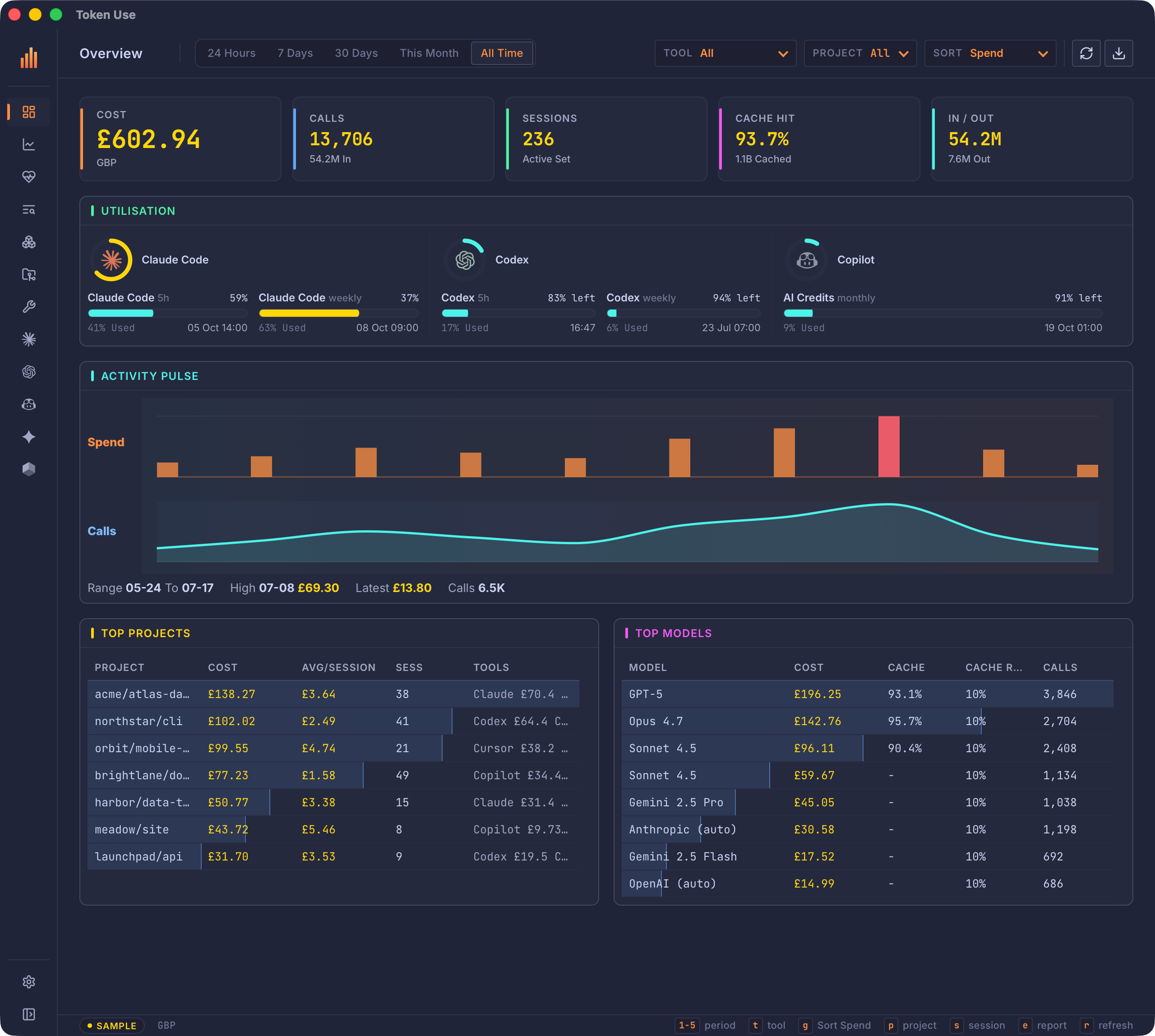
Overview is the at-a-glance command center. It leads with cost, calls, sessions, cache hit rate, and input/output totals, followed by current utilisation grouped by tool, a chronological activity pulse, top projects, and top models.
Utilisation gauges come from the latest non-stale plan snapshots. Each compact tool module starts with its mark inside a ring showing the most constrained active window, followed by a two-column matrix retaining the exact percentage or credits remaining and reset timing for its primary limits. Claude Extra Usage and Codex Spark model-specific windows stay available on their dedicated tool pages rather than appearing in this summary. A single limit spans both columns, and the modules stack only at narrow window sizes. The section is omitted when no current snapshot exists.
Analytics
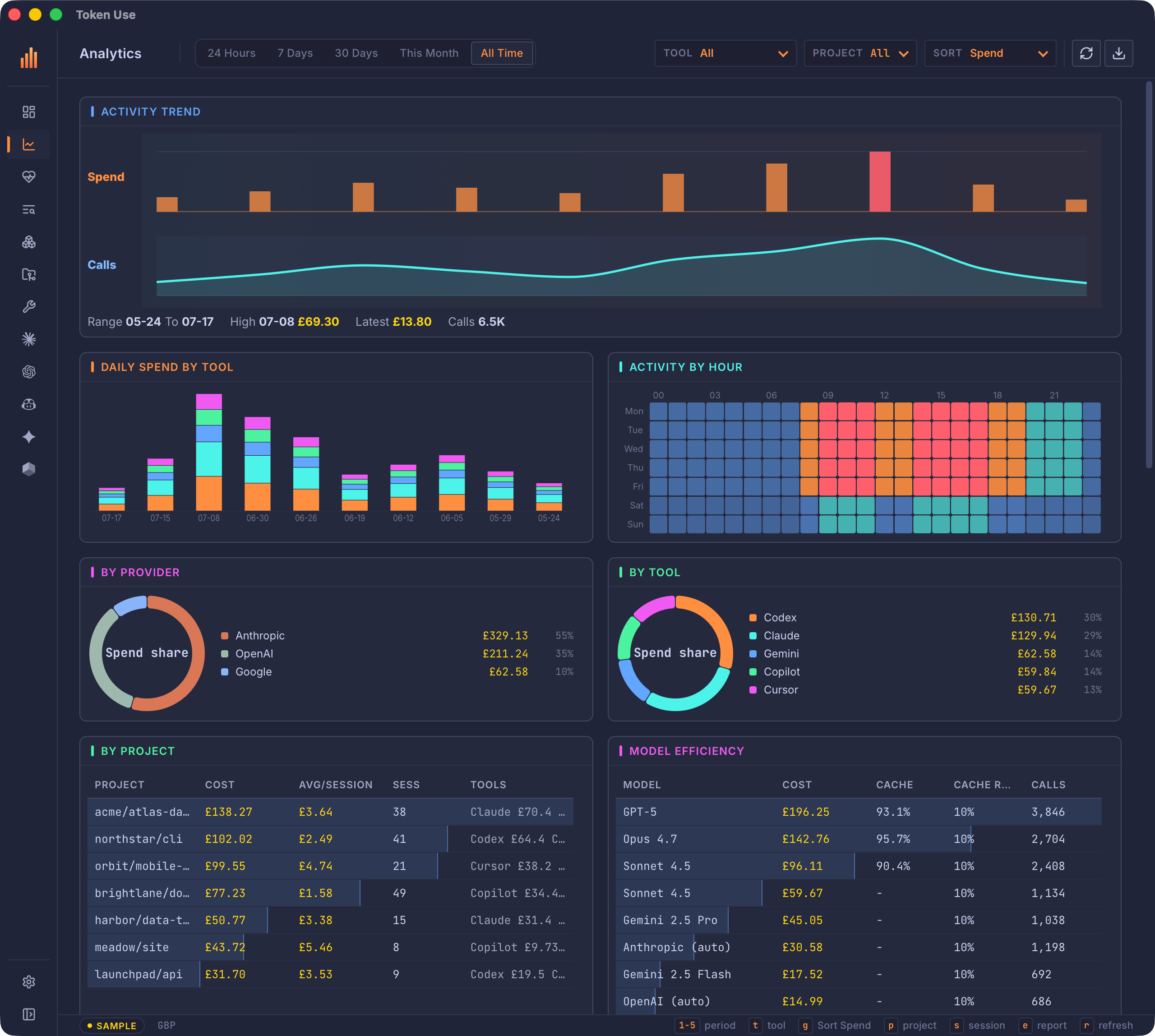
Analytics is the time and distribution workspace. It includes:
- chronological activity for the selected period;
- daily spend stacked by tool (hourly stacks on the rolling 24 Hours period, where daily bars would collapse into one or two misleading columns);
- an hour-by-weekday activity heatmap;
- provider and tool share donuts;
- cache efficiency;
- ranked projects, models, sessions, project/tool rows, core tools, shell commands, and MCP servers.
Top Sessions rows are links: select one (click, Enter, or Space) to open that session in the full session view, alongside the existing session picker. Closing the session view returns to the page it was opened from, at the scroll position you left. Project rows link too: selecting one on Overview, Analytics, or a tool page opens that project’s dedicated page. Model rows behave the same, opening that model’s page.
Charts use the same token-driven colors and relative ranking language as the TUI. Hovered chart values are exact for that bucket; bars, heat intensity, and row rank fills are relative to the visible dataset. Ranked tables carry that relative magnitude as a muted wash across each row’s background (hover a row for the exact percentage) rather than a meter column, so the full project and model names keep the space.
Graph
Graph turns the same local usage calls into an explorable 3D relationship space. Projects connects each project to the AI tools and canonical models it uses; AI stack connects tools to their models and the projects driving them. The period, tool, and project filters in the page header scope every node, edge, total, and last-active date.
Calls is the default relationship weight, while Spend and Tokens change node size, edge strength, and which entities survive the display cap. Core tools and MCP servers are optional layers so the initial map stays legible. The explorer shows the strongest 30 projects, 24 models, 12 Core tools, and 12 MCP servers, reports when more detail exists, and recommends narrowing the shared filters rather than presenting a hairball.
Drag the background to orbit, scroll to zoom, and drag a node to pin it temporarily in the force layout. Select a node to hold its immediate neighbourhood in focus and inspect complete totals plus its strongest visible relationships. Search jumps directly to a visible project, tool, model, Core tool, or MCP server; the arrow keys provide an equivalent keyboard path through the canvas. Project and model details use the same origin-aware drill-in as ranked tables; returning restores the lens, metric, layers, selection, and 3D camera. Tool nodes open the matching direct tool page. The graph remains entirely local and never includes prompt text, sessions, file paths, shell commands, or network-derived data.
Coach
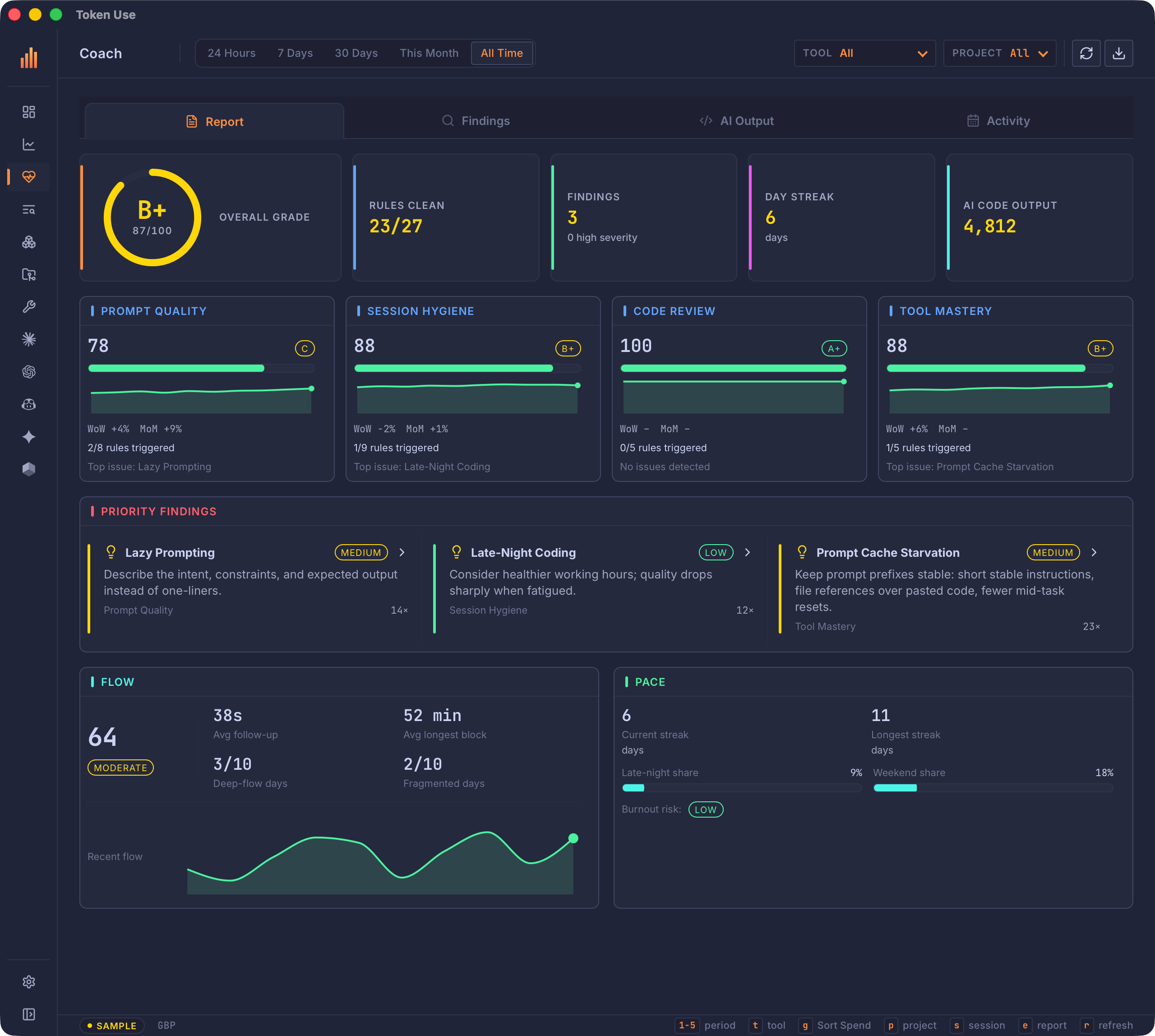
Coach turns your local usage history into a practice report card. It is entirely on-device — the analysis is deterministic Rust over the archive, with no network or AI calls (see Coach engine for the algorithms and attribution).
- Report card: a full-width row of document-style tabs switches between Report, Findings, AI Output, and Activity. Report opens with your overall letter grade (the rules-weighted mean of the four practice scores) in a radial gauge, alongside rules-clean, findings, day-streak, and code-output tiles. These large summary rows stay out of the deeper analysis tabs so those views can use the full window.
- Practice scores: four cards (Prompt Quality, Session Hygiene, Code Review, Tool Mastery), each 0–100 with a letter-grade badge, a weekly trend sparkline, week-over-week and month-over-month deltas, and the heaviest triggered rule.
- Report tab: the highest-penalty findings surface first as advice cards; selecting one opens that rule directly in the Findings evidence detail. Equal-depth Flow and Pace panels follow. Flow uses a score, four practical KPIs, and a recent sparkline; Pace shows streaks, late-night and weekend gauges, and a burnout-risk badge with specific alerts.
- Findings tab: severity and occurrence KPIs sit above a filterable master/detail explorer. Pick a finding to inspect why the rule matters, its denominator and trigger rate, the suggested next move, and every representative example captured for that signal.
- AI Output tab: total output, active days, daily average, peak day, top language, and top model appear first as comparable KPIs. A full-width chart uses 30-minute buckets for 24 Hours, hourly buckets for 7 Days, complete daily timelines for 30 Days and This Month, and monthly buckets across the full recorded history for All Time. Generated-code bars combine with a matching three-bucket moving average and selectable interval details. The language/model/project ranking remains directly below it.
- Activity tab: Work Hours shows the hour×weekday intensity grid, weekday/weekend hourly profile, and period trend. Calendar is a daily activity bar strip (turns per day) that follows the selected period: scoped periods show a trailing ~2-month window with out-of-period bars dimmed (still clickable), All Time shows the trailing year. Picking a day exposes the session table — one row per session with its time range, project, tool, turns, cost, and timeline track — and selecting a row opens the fixed call inspector. Projects ranks the active projects with spend, calls, sessions, AI LoC, and tool coverage.
Findings respect the header tool and project filters. Rules only count tools that can actually produce a signal — a tool whose logs lack, say, cancellation events never inflates a cancellation rate. Older archived calls whose source files are gone are excluded from rule denominators rather than counted as clean.
Scrollback
Scrollback is full-text search across every archived session transcript — your prompts and the assistant’s replies, across all five tools. Open it from the sidebar or with /.
Search runs as you type: from two characters, the query fires 300 ms after you stop typing, and Enter searches immediately. Matching is word-based — terms are ANDed and the final term matches by prefix (lifeti finds lifetimes); there is no substring matching inside words. The toolbar’s tool and project selects narrow the scope and re-run the search at once, and a counter reports how many sessions matched against how many are shown.
Results are session groups ranked best match first. Each group’s header row carries the project, tool, date, session cost, and match count, with a background wash proportional to the group’s match count relative to the busiest session in the result set. Below it sit up to three snippets, each tagged you or assistant with the matched terms highlighted, and a +N more matches in this session line when there are more. A prompt only badge marks sessions whose source files were already gone when transcript capture landed — only their stored prompt excerpts are searchable.
Clicking a group (or Enter / Space) opens the full session view; closing it returns to Scrollback with the query, filters, and results exactly as you left them. In sample-data mode, search reads your live archive rather than the sample dataset, and the page says so. Transcript text lives in archive.db; the Config page’s Clear Data action is the way to purge it.
Tools
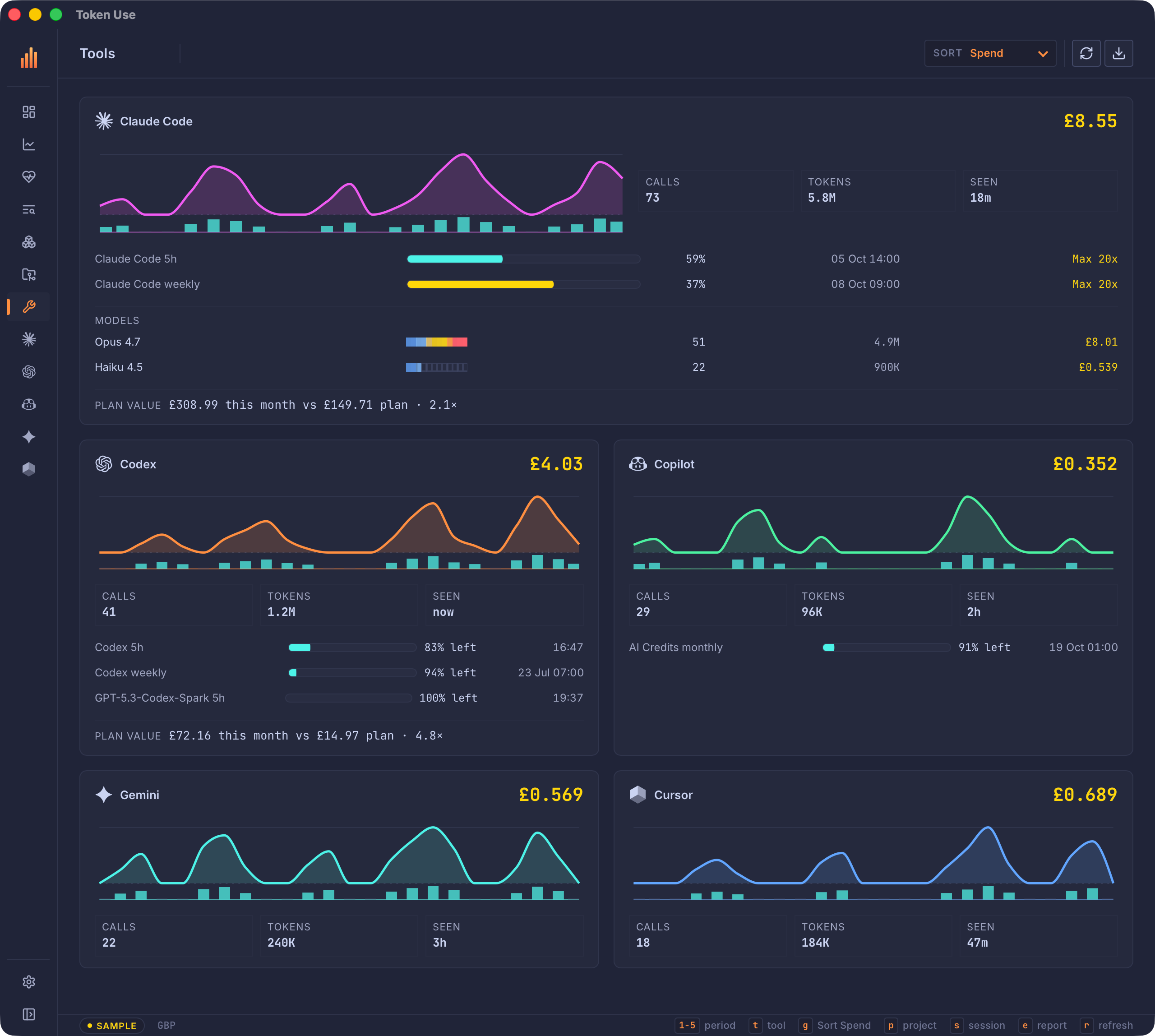
The parent Tools screen is a rolling 24-hour overview of the whole tool fleet: one compact KPI card per supported tool with its 24-hour cost, activity pulse, calls, tokens, last-seen time, primary limit gauges with reset times, and — when a subscription price is known — the plan-value line. Cards order dynamically from highest to lowest rolling 24-hour call activity, matching the sidebar tool rows. The busiest tool’s card spans the full row as a spotlight with extra detail: limit plans and its top models with calls, tokens, and cost. Every tool stays visible, including idle tools, so it is clear which sources were checked. Each card is a shortcut: selecting it opens that tool’s dedicated page. The full consoles no longer repeat here — they live on the tool pages.
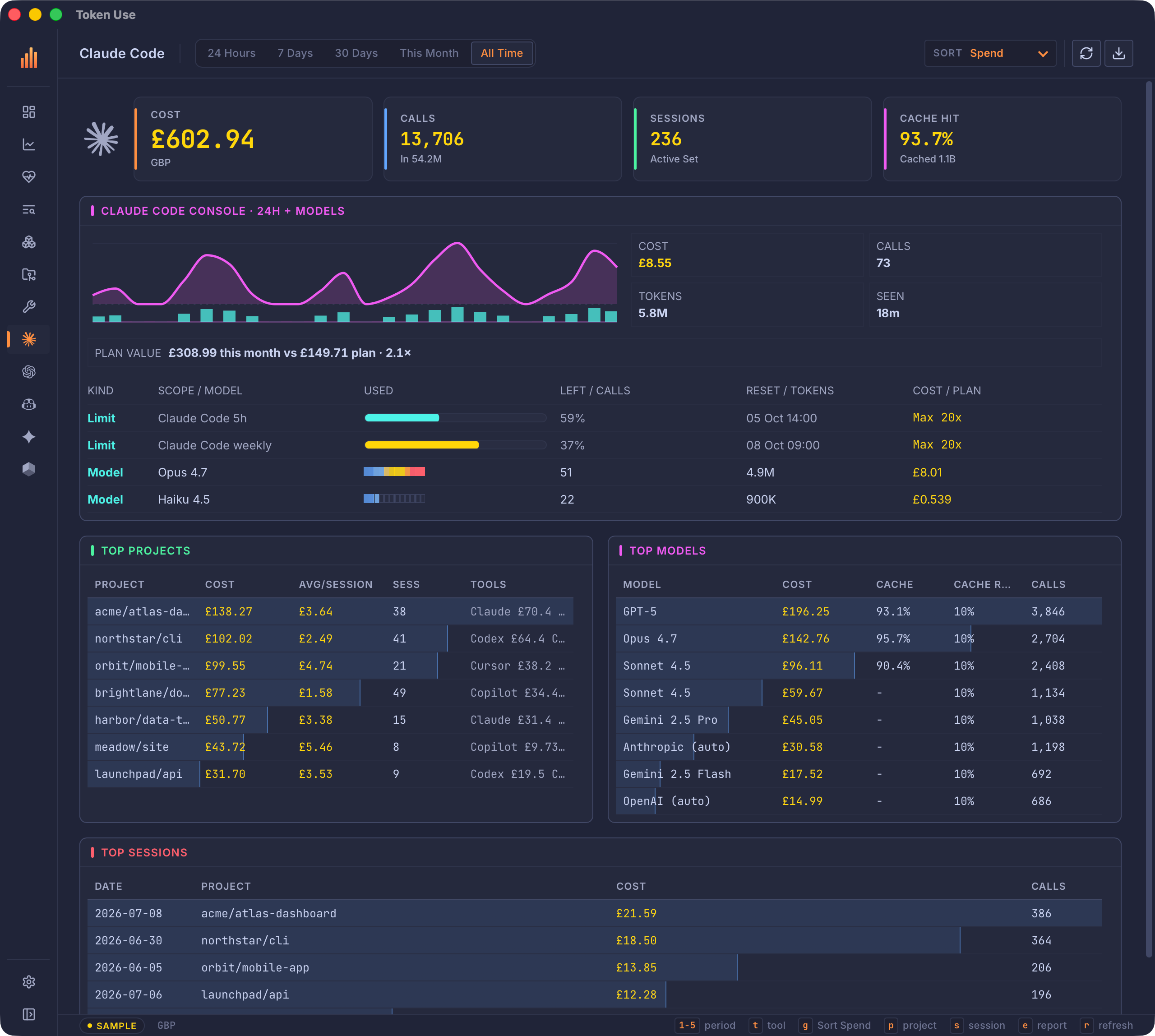
When a subscription price is known for a tool, its card and its tool-page console add a plan-value strip: the calendar month’s API-equivalent spend against the monthly plan price, with the resulting value multiple (for example £412.80 this month vs £160.00 plan · 2.1×). Prices come from the Config page’s Plan Value panel (entered in USD, shown in the display currency); for detected ChatGPT Plus/Pro and Copilot Pro/Pro+ plans a built-in price is used until one is configured. Org-paid tiers never get a default — a value multiple against a price you do not pay is noise.
The direct tool entries open dedicated pages with the selected time range. Each page has larger cost, call, session, and cache summaries, the tool’s current utilisation console, top projects, top models, and sessions. Session rows open the full session view, and closing it returns to the tool page. Tool marks are displayed without decorative icon boxes so the summary row has more room for data.
Copilot AI Credits rows show exact used and remaining/total credits, reset time, plan, and additional-usage status. Business or Enterprise payloads that hide per-seat credits show an organization-managed row rather than a blank console. A limit whose reset has passed, or whose reset-less snapshot is over a week old, dims as stale and is hidden one week later.
Models
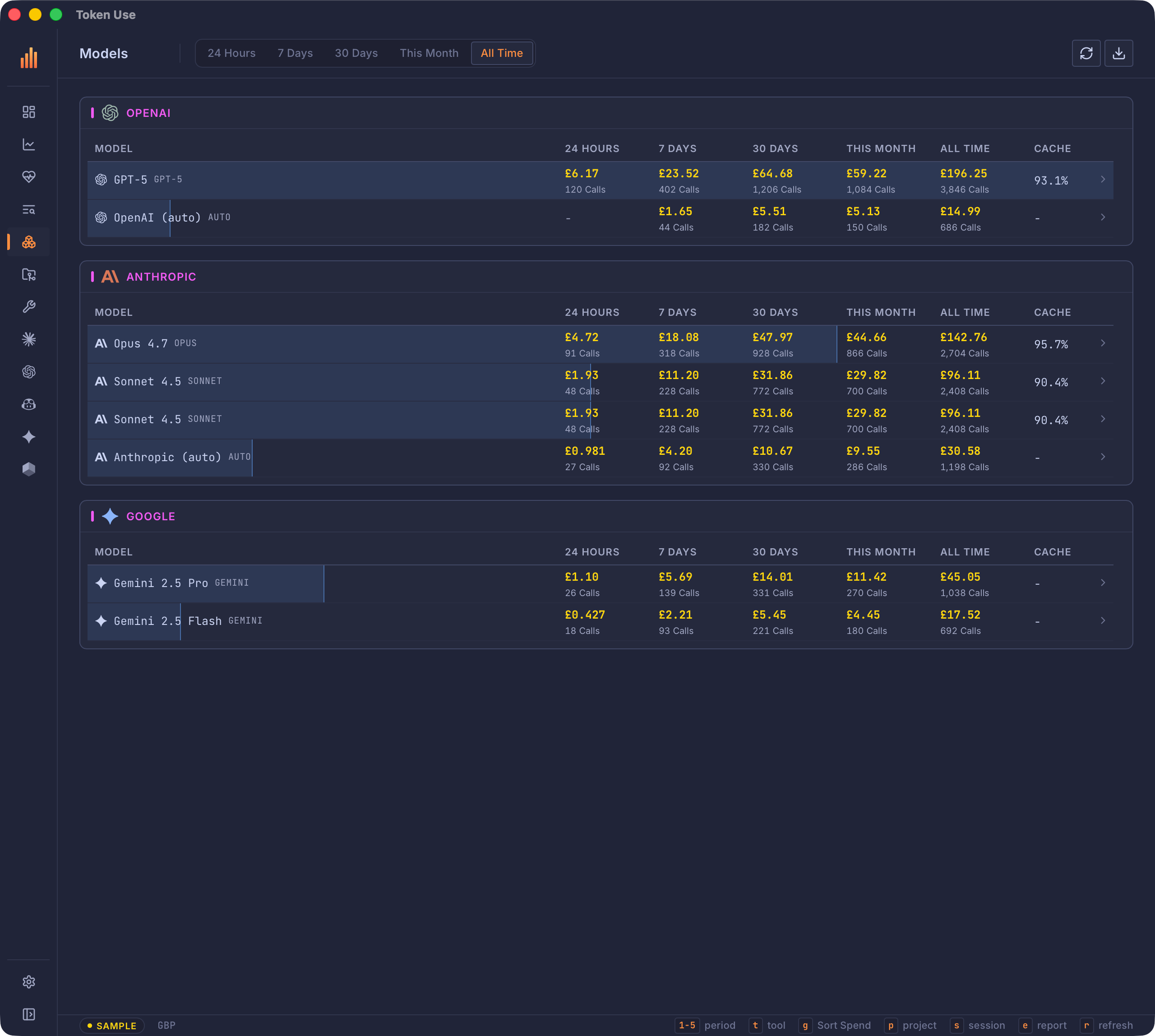
Models is a two-level drill-down, mirroring Projects. The page itself is a provider-grouped catalog across every tool. Each model row carries its canonical display name, family, cache hit rate, and cost/call totals for 24 Hours, 7 Days, 30 Days, This Month, and All Time. Equivalent dated ids and vendor paths fold into one row; automatic routers retain their actual provider attribution, such as OpenAI (auto) or Anthropic (auto). The active header period controls row ranking. Selecting a row with a click, Enter, or Space opens that model’s dedicated page.
Model rows are links everywhere the shared model table appears — Overview’s Top Models, Analytics, the tool pages, and a project page’s Top Models all open the model’s page.
The model page scopes everything to that one canonical model across all tools, honouring the period and sort selectors: a KPI band (cost, calls, sessions, cache hit, average cost per call, and output tokens), the chronological activity pulse, the model’s session list, a token-composition panel (input, output, cache-read, and cache-write totals), the per-tool split donut, a pricing panel with the model’s effective per-Mtok rates, cache rates, and average cost per call, plus which projects and By Activity task categories its spend comes from. When the model’s cost was computed via the pricing book’s fallback row, the pricing panel says so — the numbers are estimates until a pricing alias lands. Session rows open the full session view; project rows jump to the project page.
Projects
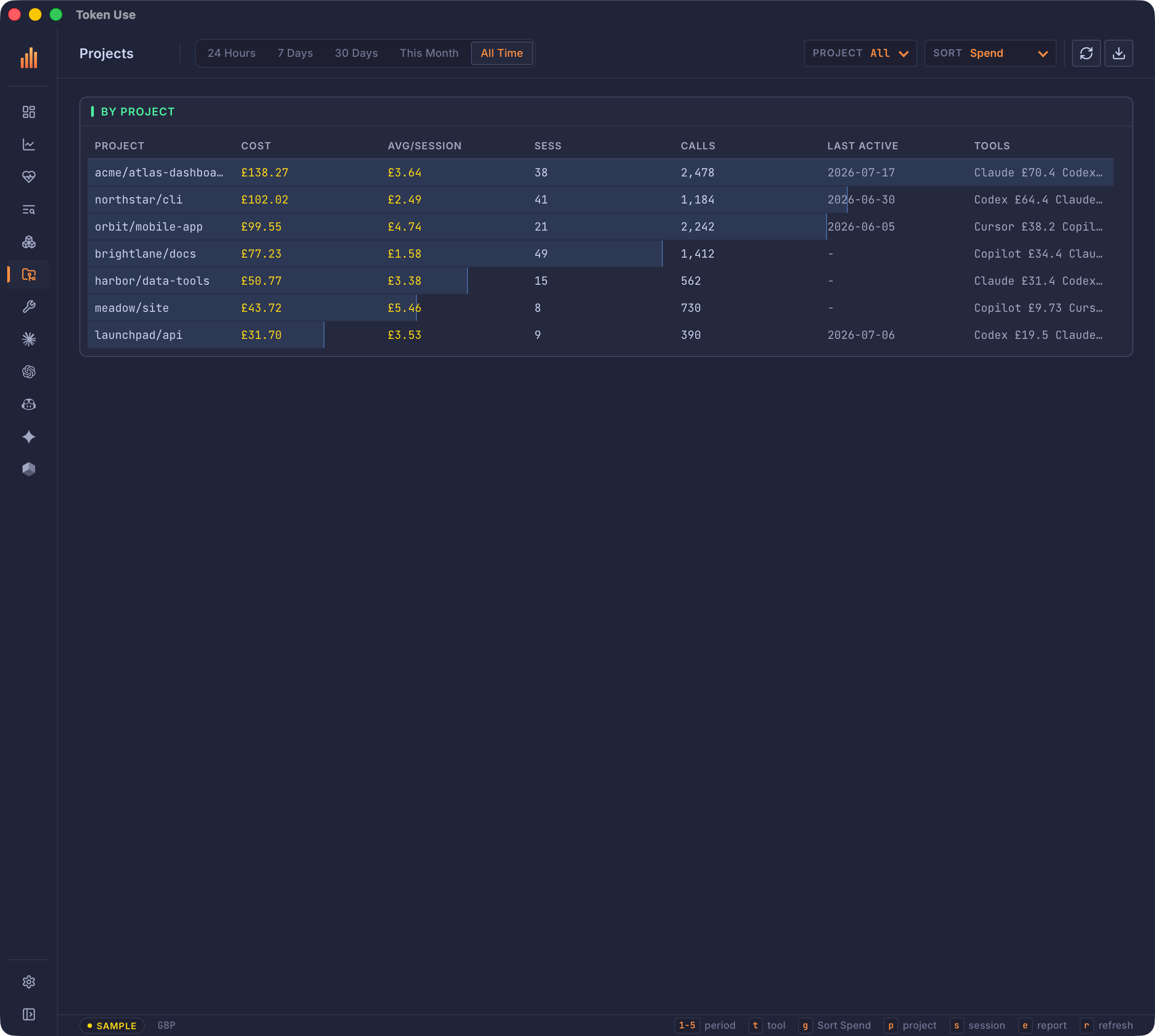
Projects is a two-level drill-down. The page itself is a full index of every project in the selected period — one row per project with cost, avg/session, sessions, calls, last-active date, and tool mix, uncapped unlike the top-10 dashboard panels. Selecting a row (or a project row anywhere else in the app) opens that project’s dedicated page.
Project and model pages open with a back chip showing the page you came from; clicking it (or pressing Esc) returns there with your scroll position restored, unwinding chained drill-ins (project → model → project) one step at a time. Navigating via the sidebar or nav keys ends the trail.
The project page scopes everything to that one project across all tools, honouring the period and sort selectors: a KPI band (cost, calls, sessions, cache hit, AI code output, and estimated active hours with the observed work pattern), the chronological activity pulse, the full session list, a per-tool split donut (switchable between cost, calls, sessions, and avg/session), top models, By Activity task categories, core tools, shell commands, MCP servers, and a Sources panel listing the raw per-tool paths discovery found. The session list renders incrementally as you scroll, and each row opens the full session view — call details there include the full stored prompt, model, token buckets, pricing rates, tools, reasoning/web-search counts, shell commands, interaction mode, and exact/estimated timestamp and token quality when those fields were available locally. Modern Cursor Agent sessions appear as one call per user request rather than separate overlapping bubble, AgentKv, and transcript rows.
The project picker in the header can still narrow the index to one normalized project identity. Project labels use the shortest unique path suffix, while the archive retains the raw project value for debugging and reports.
Config
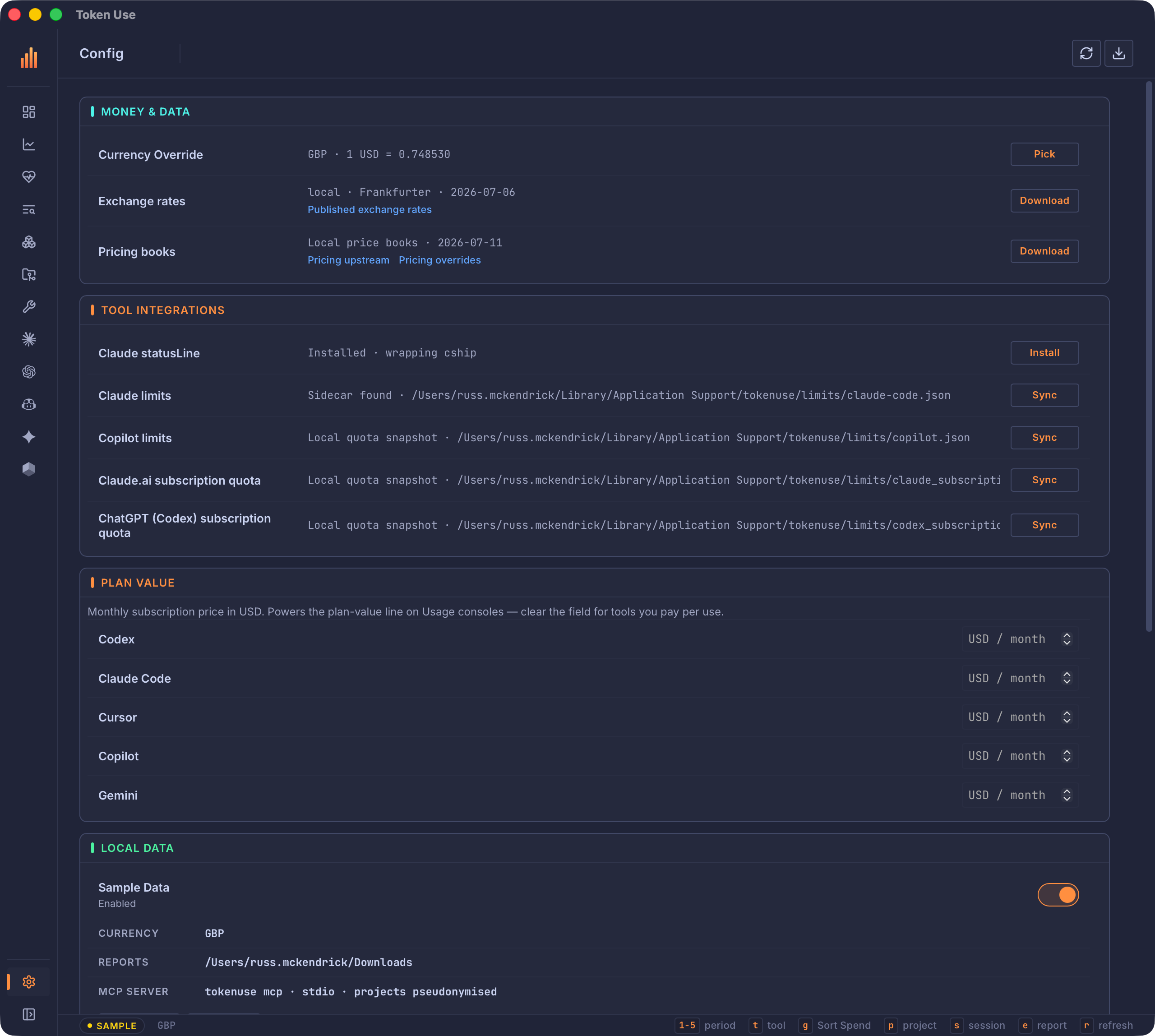
Config groups shared data settings and desktop-only behavior:
- display currency;
- monthly plan prices (Plan Value panel) powering the Usage consoles’ plan-value strips;
- live/sample Sample Data toggle;
- confirmed currency and pricing-book downloads;
- Claude Code status-line setup and Claude/Copilot limit sync;
- optional Claude.ai and ChatGPT quota-cookie sync when the build supports it;
- on-demand per-tool data-source diagnostics (Data Sources);
- clear and rebuild local archive;
- report folder;
- open at login and Dock/taskbar visibility;
- Windows/Linux update checks.
Turning on Sample Data changes only the visible source. Any live snapshot remains cached, background refreshes continue updating it, and turning Sample Data off returns to that live snapshot.
The Data Sources panel runs the same read-only diagnostics as tokenuse doctor, on demand. Run diagnostics reports, for every tool adapter, the locations it probes (found or missing), the environment overrides in effect, how many session and limit sources discovery found, and a bounded parse sample, ending in an OK / NOTHING FOUND / ERRORS / DISCOVERY FAILED verdict with the likely cause. Because the checks re-walk the filesystem and parse sample files, they run only when the button is pressed; the result and its timestamp stay in the window until the next run and are never part of the background snapshot poll.
When any model in the archive is billed at the fallback pricing rate, the pricing row’s warning (the affected tool · model pairs and the fix hint) is shown in the warning tone so guessed costs stand out from real ones.
The Local Data panel also shows the launch hint for the bundled MCP server (tokenuse mcp — stdio, project names pseudonymised); see the TUI usage guide for the full command reference.
The MCP Server panel hosts the HTTP variant of the same server. Flipping Serve over HTTP starts a loopback-only listener at http://127.0.0.1:<port>/mcp (default port 20151, editable in the panel) that runs for as long as the app does and stops when the toggle is turned off or the app quits; the saved setting restarts it on the next launch. Every request needs the bearer token shown masked in the panel — Reveal fetches it on demand, Copy token copies it, and Copy command copies a ready-to-paste claude mcp add --transport http … registration including the token. If the port is already taken, the toggle fails with the bind error and nothing is persisted. The endpoint serves the same four read-only tools as stdio with project names always pseudonymised, and accepts no connections from other machines or browser pages. See the MCP server reference for the tool schemas and security model.
Keyboard
Desktop navigation is resolved in the Svelte shell; data actions call typed Rust commands directly. Shortcuts are ignored while typing in an input, select, or text area, except for Esc.
| Key | Action |
|---|---|
Tab / Shift-Tab |
Cycle Overview, Analytics, Graph, Coach, Scrollback, Models, Projects, Tools, and Config. |
o |
Open Overview. |
d |
Open Analytics. |
h |
Open Coach. |
/ |
Open Scrollback transcript search. |
u |
Open Tools. |
c |
Open Config. |
1–5 |
Select 24 Hours, 7 Days, 30 Days, This Month, or All Time where the period is available. |
t |
Cycle tool on Overview, Analytics, or Graph. |
g |
Cycle spend, latest-date, and token-use sorting where sorting is available. |
p |
Open the project picker on Overview, Analytics, Graph, or Projects. |
s |
Open the session picker. |
e |
Open report generation. |
r |
Refresh the archive. |
Shift-D |
Toggle live and sample data. |
Esc |
Close the active detail/modal, or return from the session view to the page it was opened from. |
Clickable model, project, session, and call rows also support Enter and Space.
Time Ranges And Charts
24 Hours is a rolling window from the current time, not a calendar day. Activity charts use hourly buckets for 24 Hours and 7 Days. This Month is hourly through day 14 and daily from day 15 onward; 30 Days and All Time use daily buckets.
Spend bars use the warm chart series and call cadence uses the cool series. Ranked bars and heat cells show relative magnitude within the visible panel. Use the adjacent numeric values for exact cost, call, token, reset, and plan values.
Tray And Background Alerts
Closing the main window keeps Token Use running. Left-click the tray or menu-bar icon for Quick View, or use the tray menu when the desktop environment does not support left-click activation. Quick View shows compact 24-hour cost, call, token, and cache totals plus the four most urgent current utilisation windows with percentages or credits remaining and reset times. Choose Open to restore the full app; choose Quit Token Use from the tray menu to stop it.
The backend continues draining completed archive refreshes while the window is hidden. Automatic refreshes can send native notifications when new live usage crosses a configured cost, token, or call threshold. Manual refreshes reset the alert baseline without notifying. Visible filters and sample mode do not change the all-live-data alert baseline.
Background alert and desktop defaults live in config.json:
{
  "currency": "USD",
  "background_alerts": {
    "enabled": true,
    "min_cost_usd": 1.0,
    "min_tokens": 100000,
    "min_calls": 25,
    "cooldown_minutes": 30
  },
  "desktop": {
    "open_at_login": false,
    "show_dock_or_taskbar_icon": true
  }
}
Windows notifications are most reliable from an installed build. On Windows and Linux, Config can check GitHub Releases for updates. Windows uses the NSIS installer and Linux in-app updates target AppImage installs; deb/rpm users update through their package workflow. macOS updates continue through Homebrew Cask or a new DMG.
Refresh, Reports, And Local Data
Use the header refresh button or r to sync the archive in the background. The previous snapshot remains visible if a refresh fails. Clear Data asks for confirmation, deletes archive.db, and immediately reimports existing local history. Configuration, rates, pricing books, limit sidecars, and reports are retained; archive-only history is lost if its original source files no longer exist. Once archive.db exists, the Clear Data row’s value leads with its current size (for example Archive 12.3 MiB incl. transcript index) — the archive also holds the Scrollback transcript index, and Clear Data is the way to purge captured transcript text.
Report generation has independent period, project/all-projects, format, and redaction controls. It writes executive HTML/PDF decks, SVG/PNG visual summaries, JSON, Excel, or a CSV folder. Reports include all tools for the selected period and project scope. Folder selection uses the native dialog and applies to the running session.
The desktop app and TUI share the platform config directory under tokenuse:
| File / directory | Purpose |
|---|---|
config.json |
Currency, background alerts, and desktop preferences. |
archive.db |
Durable normalized calls, limits, and source fingerprints. |
exchange-rates.json / rates.json |
Current and legacy local currency snapshots. |
pricing-upstream.json / pricing-overrides.json |
Optional local pricing books. |
pricing-snapshot.json |
Legacy local pricing snapshot. |
limits/ |
Claude Code, Copilot, and optional subscription-quota sidecars. |
reports/ |
Fallback report directory. |
Changing currency, refreshing or clearing the archive, downloading books, or syncing limit sidecars affects the same persistent state the TUI reads. The Sample Data toggle is intentionally runtime-only for the current desktop process.
The Claude Code status-line setup creates an OS-specific wrapper under <config>/tokenuse/statusline/, backs up ~/.claude/settings.json, and wraps any existing status-line command so its visible output is unchanged. Generate wrapper only leaves user configuration untouched; Uninstall restores the prior command and removes the wrapper while retaining the last sidecar JSON.